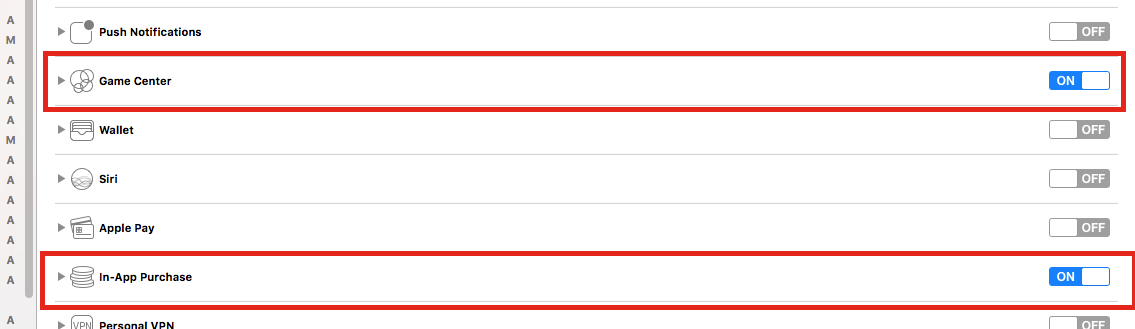
How to add apple in-app purchase?
This guide will show you how to add apple in-app purchase to you project.
go to you Apple Developer Account https://developer.apple.com/account/
Click -> "Certificates, Identifiers & Profiles"
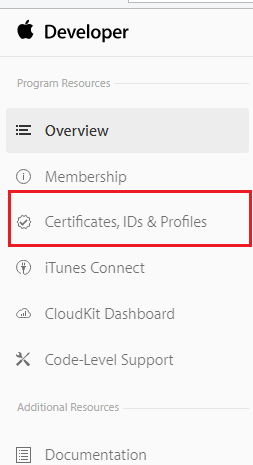
See next screenshot
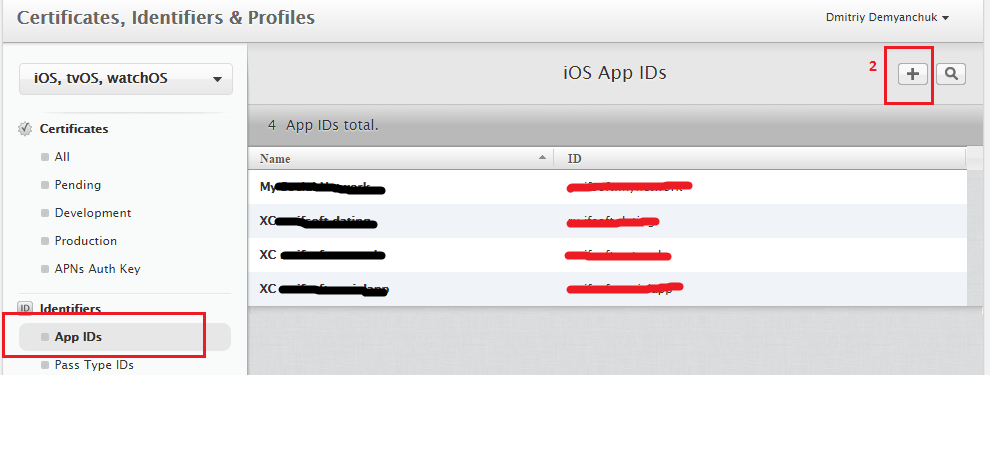
Enter "App name" and "Bundle ID" and Click -> Continue
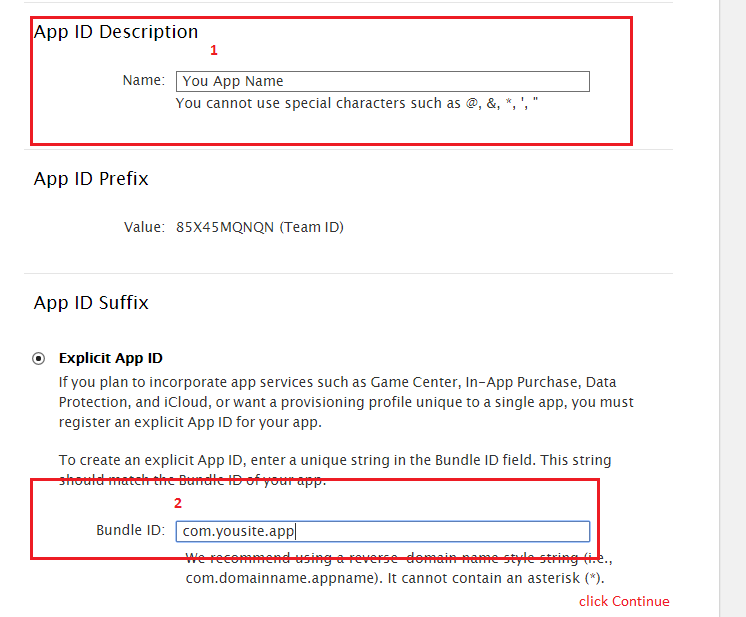
After creating iOS APP, we have to go to iTunes Connect https: //itunesconnect.apple.com/
If you do not specify personal information, bank account, etc - do it! See next 2 screenshots:
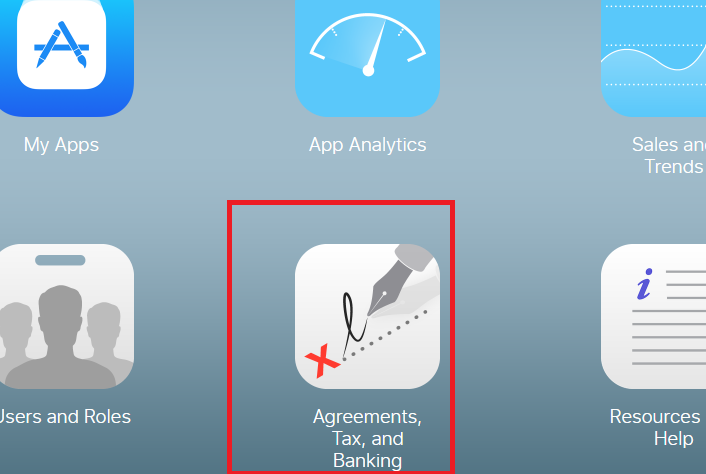
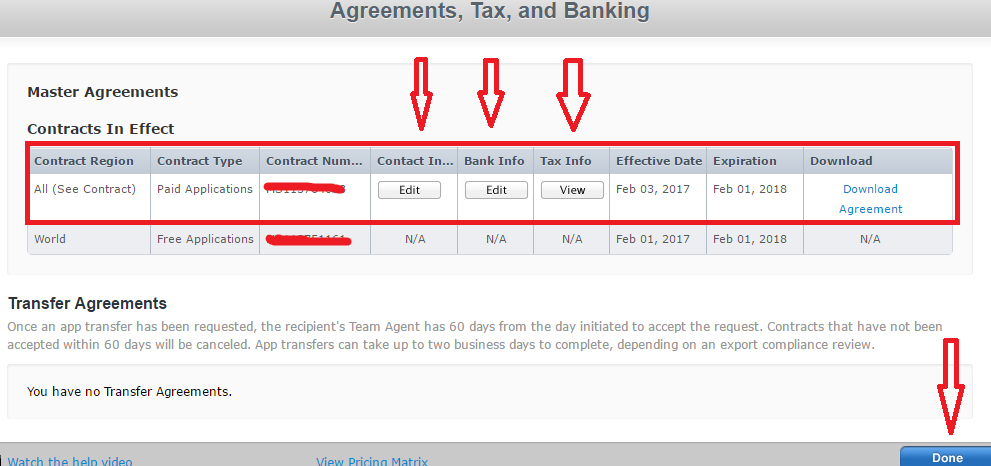
go to iTunes Connect https: //itunesconnect.apple.com/ and Click:
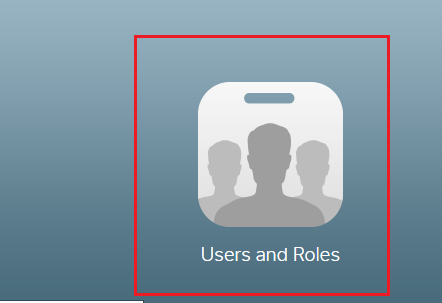
Add users for purchases testing
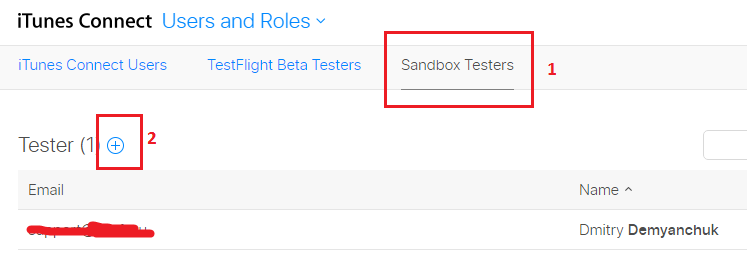
go to iTunes Connect https: //itunesconnect.apple.com/ and Click:
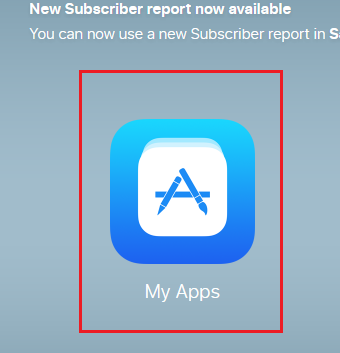
Add your application:
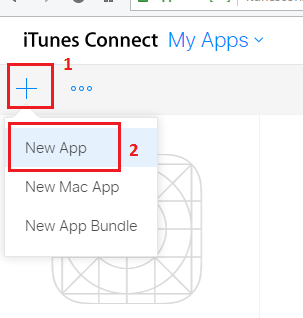
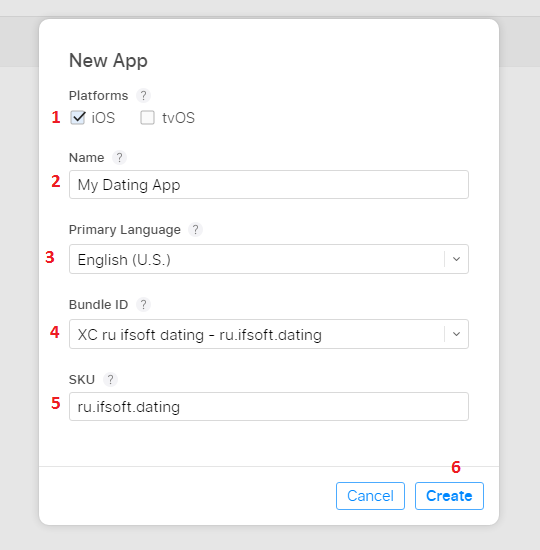
See screenshot. Bundle ID - select previous created project in step 4
Steps 13, 14, 15 - Run 3 times. It is necessary to establish three in-app purchases - to purchase 30, 70 and 120 credits.
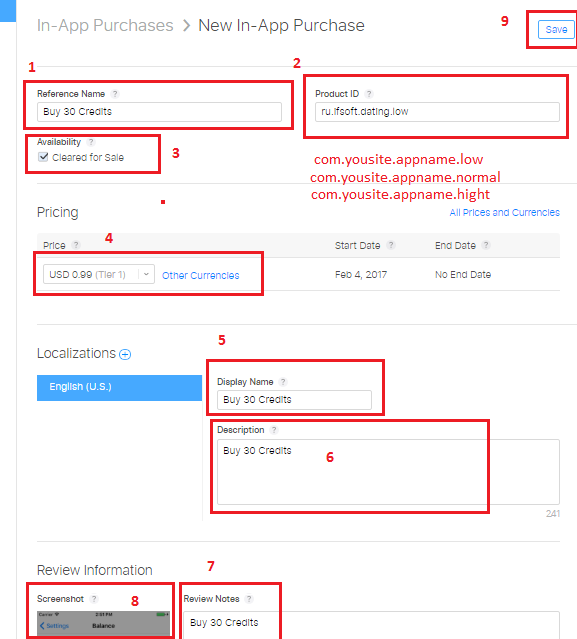
To do this, mount a ProductsIds (!!! com.yousite.app - you Bundle ID !!!):
com.yousite.app.low - for buy 30 credits
com.yousite.app.normal - for buy 70 credits
com.yousite.app.highs - for buy 120 credits
Add in-app Purchases
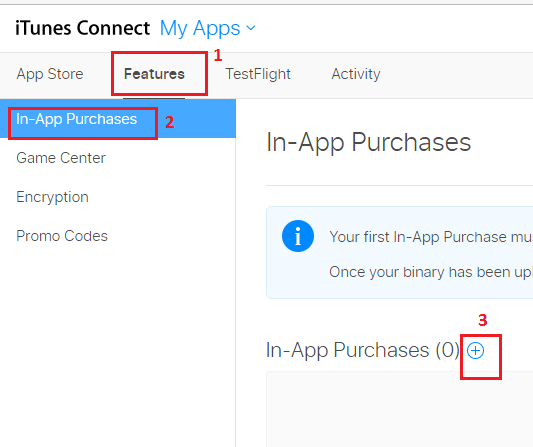
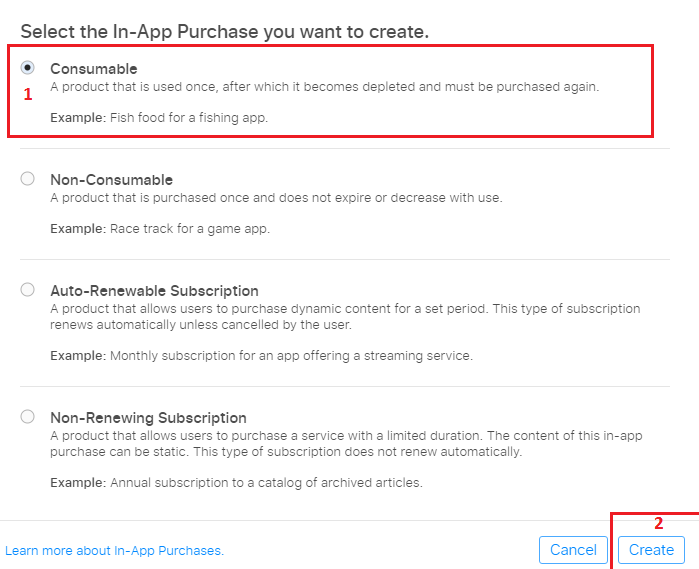
Select -> Consumable
Fill in all fields. The example in the screenshot:
Open Project in XCode and in file BalanceController.swift change you ProductsIds

Set to project you Bundle Id from step 4
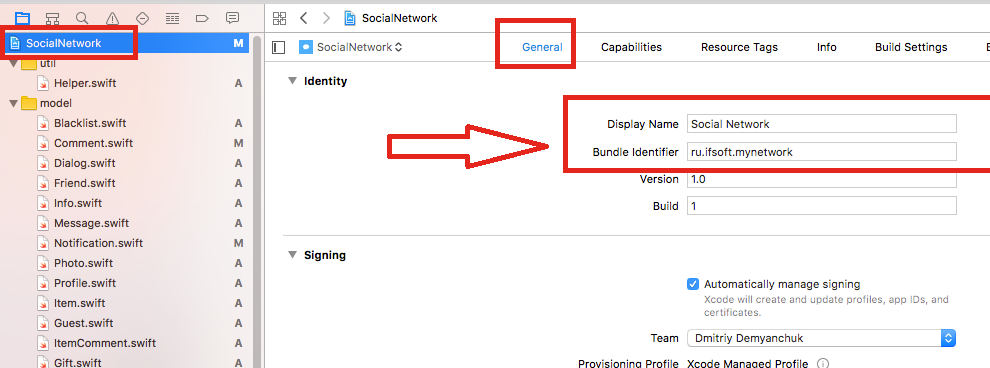
And see next screenshot :)